
The operator can add annotations (text entries) during flight execution. Each annotation also include the time when the annotation was created by the operator. The annotations are added to the flightdata.xml metadata file that is passed along with the recorded data for data processing.
The text for the annotation is selected by the operator from the Annotation Text list. The Annotation Text list can contain large number of annotation text. The maximum length of the annotation text is 80 characters. The operator can add additional annotation texts to the Annotation Text list. The operator can edit or delete the existing annotation texts in the Annotation Text list. Each annotation text has an Annotation ID. The Annotation Text list is sorted by the Annotation ID. The Annotation ID is not added to the flightdata.xml metadata file.
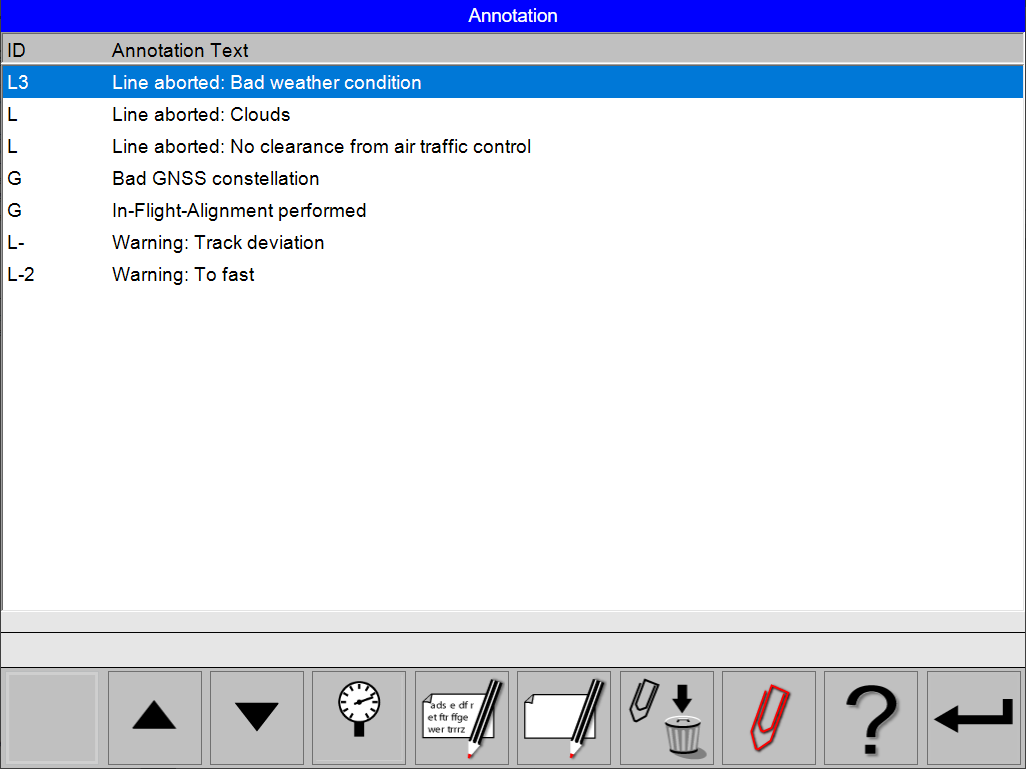
Add an Annotation to the flightdata.xml metadata file
Annotations are only available during Flight Execution
-
Select any of the Flight Guidance Views
-
Click the Annotation

-
Click the Scroll up


-
Click the Annotation
-
Click the Return

Edit an Annotation
-
Select any of the Flight Guidance Views
-
Click the Annotation
-
Click the Scroll up
-
Click the Edit Annotation

-
Edit the Annotation Text ID with the On-Screen Keyboard
-
Click the Accept


-
Edit the Annotation Text with the On-Screen Keyboard
-
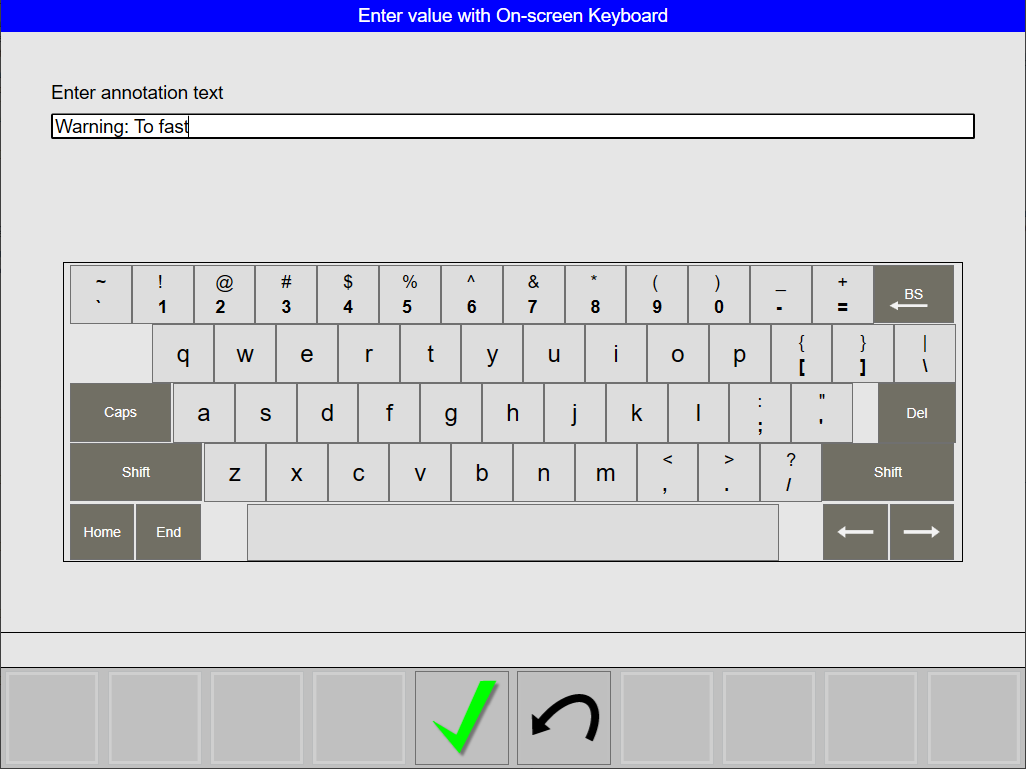
-
Click the Accept
-
Click on the Return
Create a new Annotation
-
Select any of the Flight Guidance Views
-
Click the Annotation
-
Click the Create Annotation

-
Edit the Annotation Text ID with the On-Screen Keyboard
-
Click the Accept
-
Edit the Annotation Text with the On-Screen Keyboard
-
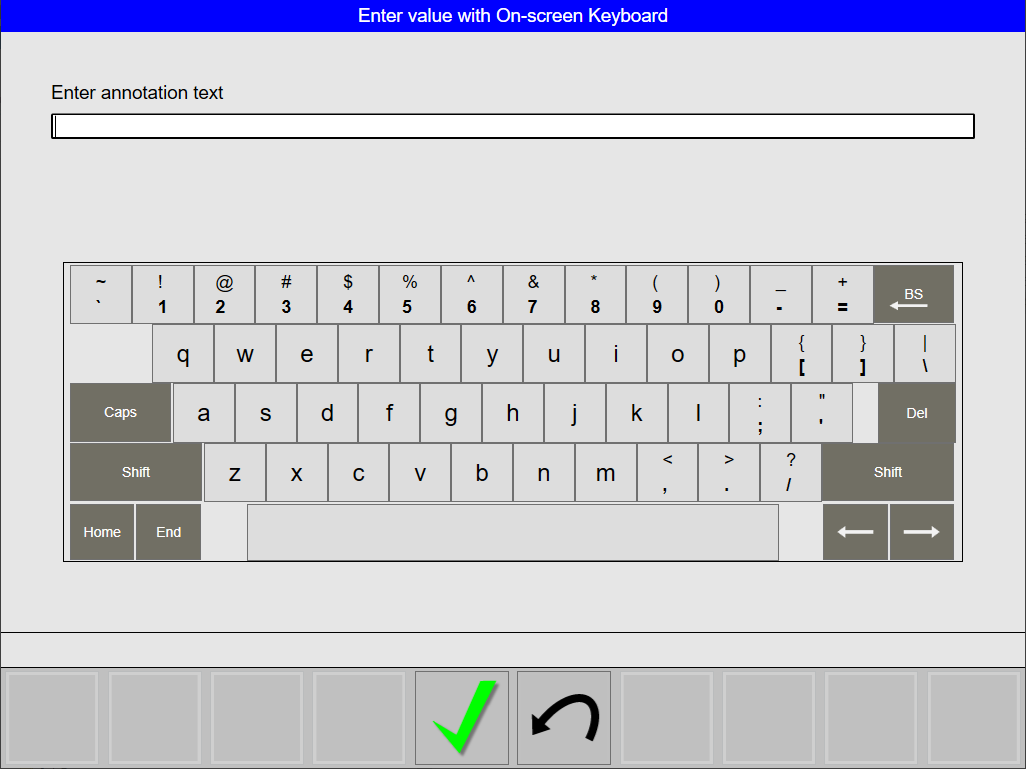
-
Click the Accept
-
Click on the Return
Delete an Annotation
-
Select any of the Flight Guidance Views
-
Click the Annotation
-
Click the Scroll up
-
Click the Delete Annotation

-
Click the Accept
-
Click the Return