
-
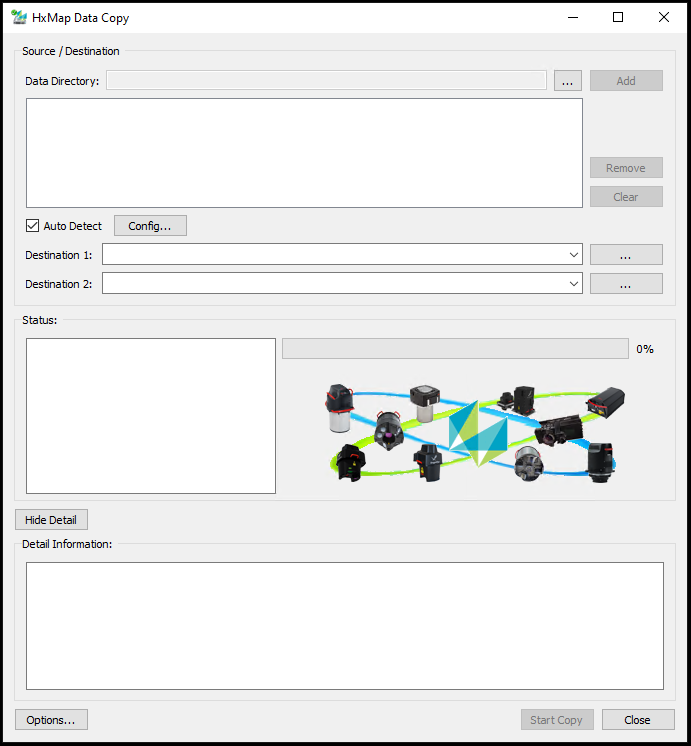
Once the MMs are connected via an appropriate device to the system used to execute the data transfer, launch the HxMap Data Copy Tool. The following GUI is shown:
-
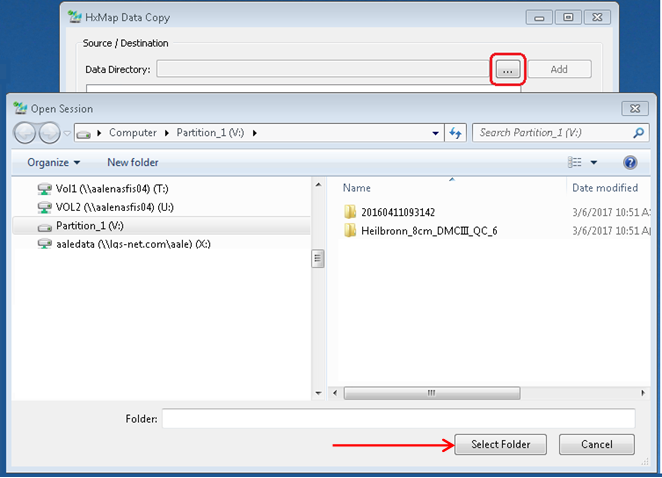
Use the Browse button to a Data Directory which should be added as a source for the copy process.
-
Browsing to the root of a drive in an MM device results that all sessions on that MM will be copied
-
Browsing to a session folder in the drive of an MM results that only that session will be copied
-
-
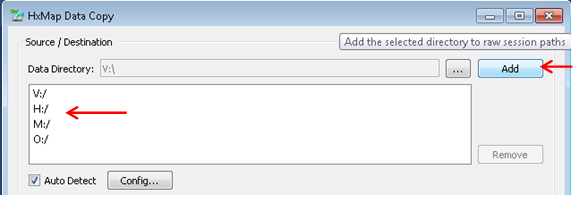
Before clicking Add, choose whether to use Auto Detect to find additional sources.
-
Auto Detect uses the described logic to automatically search for additional drives of connected MM devices and adds them to the source list
-
When Auto-Detect is disabled only the Data Directory selected by the user is added to the source list
-
Auto Detect can be be configured to exclude specific drives in its search
-
-
Use the Remove button to remove selected sources from the list
-
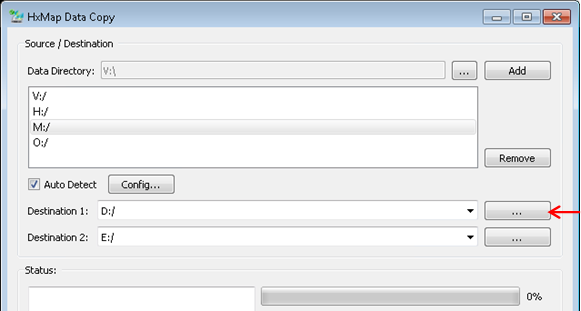
Select the target location for the copy process. You can pick a 2nd destination, e.g. in order to create a backup. The HxMap Data Copy tool is capable to run two parallel copy processes.
-
Data copied to the destination will be organized in folders by session ID then by ‘MM’ and index of the source drive, like MM1, MM2, etc.
-
-
Review the copy options
-
Destination handling logic to copy the raw data into the correct data structure.
-
Data copy options for creation and verification of checksums.
-
Once the options are set properly, start the copy process via the <Start Copy> button.
-
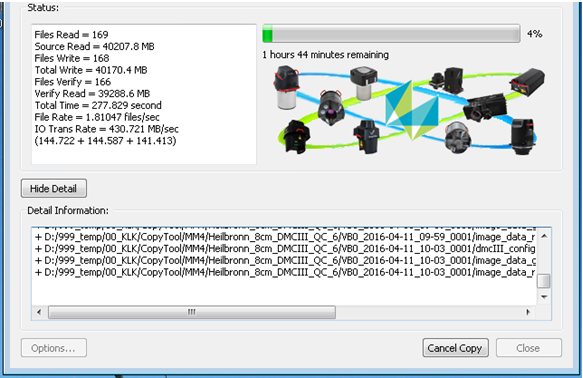
The copy status is displayed via a status window and a progress bar.
-
Detailed listing of the copy’s items can be found in the lower section, which is shown once the user hits the <Show Detail> (Hide Detail) button.
-
-
If you intend to stop the copy process, use the <Cancel Copy> button.
Leica CoastalMapper records GNSS/IMU, imagery, and topo LiDAR data in one (server) session and bathymetric LiDAR data in a secondary (client) session. Data Copy automatically detects this relationship and will include the client session data in the server session folder in the destination.
Logging
HxMap Data Copy will log all copy steps following the configuration set for HxMap. Additionally a log will be added to the target destination(s) for the current copy job.