
The data source window shows the data loaded in the Workflow Manager. It follows a hierarchical structure where nodes can be expanded/collapsed as needed.
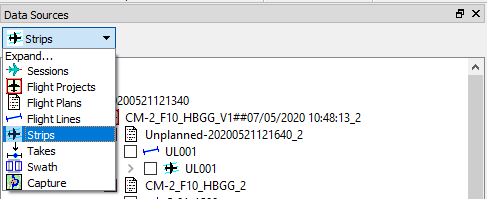
Expand to hierarchy level
User can Expand / Collapse the session information in the Data Sources view by selecting the level in the 'Expand …' pull-down menu.
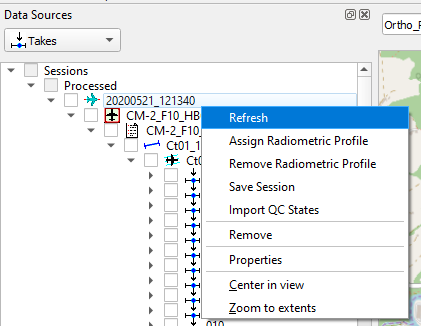
Refreshing sessions and blocks
When working with data in the workflow manager it can be required to refresh loaded data. This is for example required if a processing task has been submitted to the cluster. In this case jobs will update the data as they are executed, but this is not reflected inside the workflow manager. To refresh loaded sessions and blocks, right-click on the respective node in the data source tree and select “Refresh” from the context menu options.
Item properties
To investigate the attributes of an item, the dialog window can be launched for a node. This can be done through the context menu and selecting “Properties”.
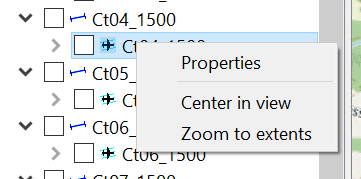
Center / Zoom on item
In addition to the properties, the “Center in view” and “Zoom to extents” can be used for most items to adjust the map window as selected.